
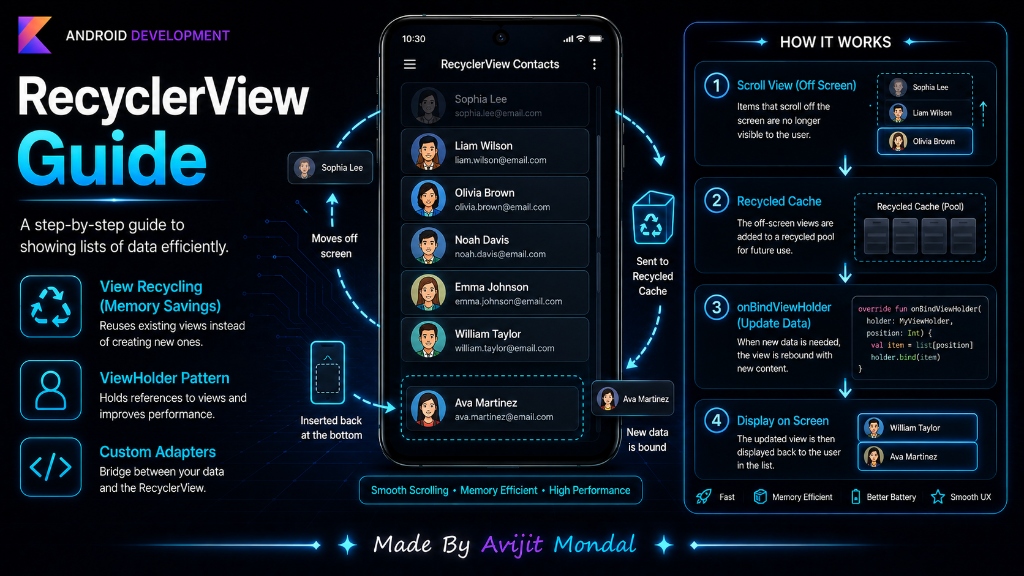
Introduction: Almost every app you use has lists—contacts, chat feeds, product catalogs, or settings options. But if your list has 10,000 items, how does the phone display it without slowing down or running out of memory? In Android development, the standard way to show lists efficiently is using RecyclerView. Today, we will learn how it works under the hood.
The Analogy: The Ferris Wheel (Recycling Views)
Imagine a **Ferris Wheel** with 10 passenger cabins. Even if there are 10,000 people waiting in line, the Ferris wheel does not buy 10,000 cabins. It just keeps rotating. As one passenger steps out at the bottom, a new passenger steps in. The cabins are **recycled**.
If you used a basic list (like a ScrollView), Android would construct 10,000 card views in memory all at once. This wastes RAM and makes your app lag.
RecyclerView is that Ferris Wheel. It only builds enough card views to fill the screen (about 8 to 10 cards). When you scroll down, the card that disappears off the top is not thrown away. It is moved to the bottom, refilled with new data, and displayed again. It has three main parts:
- 1. RecyclerView (The Container): The list frame placed on your screen.
- 2. ViewHolder (The Cabin): A helper class that holds the layout views of a single row (like a TextView and ImageView) so Android doesn't have to look them up repeatedly.
- 3. Adapter (The Ticket Master): The middleman that connects your list data to the ViewHolders. It decides what text goes into which view as they rotate onto the screen.
RecyclerView Code Implementation
Let's build a simple list of names using RecyclerView.
Step 1: Create the ViewHolder
The ViewHolder stores references to the XML elements inside a single list card:
import android.view.View
import android.widget.TextView
import androidx.recyclerview.widget.RecyclerView

class ContactViewHolder(itemView: View) : RecyclerView.ViewHolder(itemView) {
    // Find the text elements once and hold them
    val nameTextView: TextView = itemView.findViewById(R.id.contactNameTextView)
}
Step 2: Create the Adapter
The Adapter loads the layout file and binds text to your views:
import android.view.LayoutInflater
import android.view.ViewGroup
import androidx.recyclerview.widget.RecyclerView

class ContactAdapter(private val contactList: List<String>) :
    RecyclerView.Adapter<ContactViewHolder>() {

    // 1. Create a new cabin (ViewHolder) when needed
    override fun onCreateViewHolder(parent: ViewGroup, viewType: Int): ContactViewHolder {
        val view = LayoutInflater.from(parent.context)
            .inflate(R.layout.item_contact, parent, false)
        return ContactViewHolder(view)
    }

    // 2. Put new data into a recycled cabin as it scrolls in
    override fun onBindViewHolder(holder: ContactViewHolder, position: Int) {
        val name = contactList[position]
        holder.nameTextView.text = name
    }

    // 3. Tell the recycler how many items are in the queue
    override fun getItemCount(): Int = contactList.size
}
Step 3: Connect to the Recycler on Screen
Inside your Activity, you bind the adapter and choose a LayoutManager (which controls vertical, horizontal, or grid layouts):
import androidx.recyclerview.widget.LinearLayoutManager

class MainActivity : AppCompatActivity() {
    override fun onCreate(savedInstanceState: Bundle?) {
        super.onCreate(savedInstanceState)
        setContentView(R.layout.activity_main)

        val names = listOf("Alex", "Bob", "Charlie", "David", "Emma")

        // Bind Adapter and LayoutManager
        myRecyclerView.layoutManager = LinearLayoutManager(this)
        myRecyclerView.adapter = ContactAdapter(names)
    }
}
Scrollable Lists Comparison
To decide how to show lists, use this quick comparison table:
| List Type | Performance | Boilerplate Code | Best For |
|---|---|---|---|
| ScrollView | ❌ Bad (loads everything at once) | Very Low | Small layouts (like forms) that don't change size. |
| RecyclerView | ✅ Excellent (recycles views) | High (needs Adapter & ViewHolder) | Large XML-based list feeds. |
| Compose LazyColumn | ✅ Excellent (lazy recycling) | Very Low (no adapters needed) | Modern apps built in Jetpack Compose. |
LazyColumn { items(names) { Text($it) } }. The system handles the recycling logic automatically behind the scenes!Summary
RecyclerView shows long lists of data efficiently by recycling cards as they scroll off the screen, preventing high memory usage. By implementing a ViewHolder to hold layouts, and an Adapter to bind data list items, you can create smooth, high-performing lists. For modern apps, Jetpack Compose's LazyColumn offers the same performance with even simpler code!