
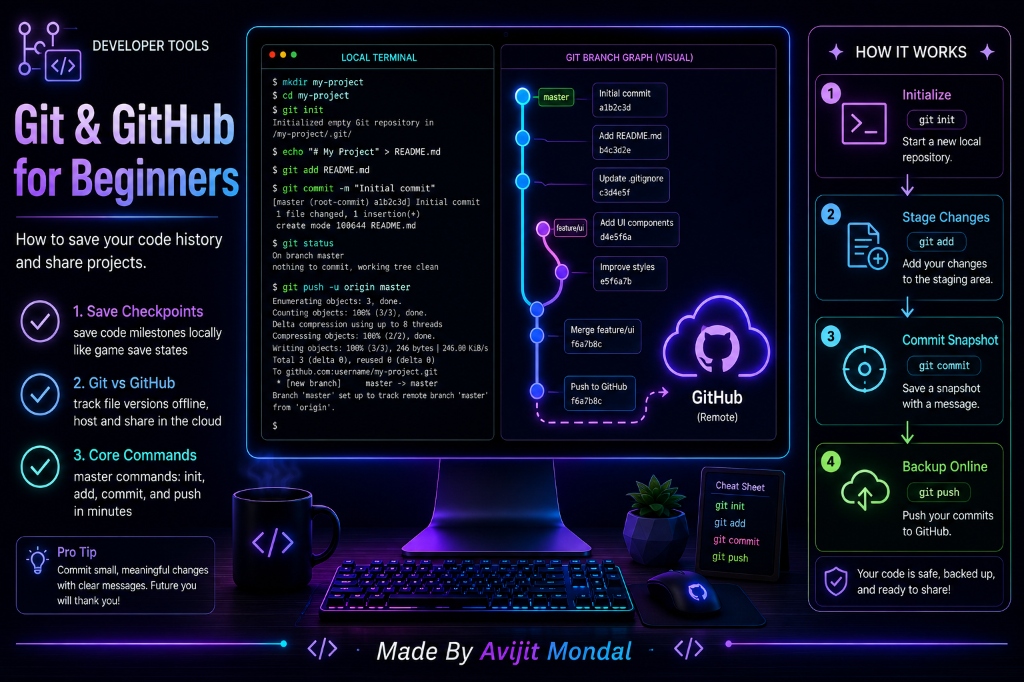
Introduction: When you start coding, you make constant changes. You add new features, adjust layouts, and clean up functions. But what happens if your app was working perfectly at 1:00 PM, and by 3:00 PM it crashes with 20 different errors, and you cannot remember what you changed? This is why software developers use Git and GitHub. They act as a safety net, allowing you to track your code changes, undo mistakes, and collaborate with others.
The Analogy: The Video Game Save State
Imagine playing a long, challenging adventure video game:
- Without Save States (No Git): You play for five hours, gather rare weapons, cross a dangerous bridge, and fall into a lava pit. Since there are no checkpoints, you lose everything and have to restart the entire game from the beginning. You get extremely frustrated.
- With Save States (With Git): Right before crossing the dangerous bridge, you click 'Save Game' to create a checkpoint. If you fall and die, you do not panic. You simply click 'Load Game' and reappear safely right before the bridge with all your weapons intact.
- Shared Saves (With GitHub): You upload your saved game file to a cloud server. Now, a friend can download your save to play the next level with you, or help you beat a difficult boss on their own console.
Git creates these checkpoints (commits) locally, and GitHub hosts them in the cloud so you can back them up and share them.
What is the difference between Git and GitHub?
Many beginners confuse these two terms. They are related but serve different roles:
- Git: A local version control software that you install on your computer. It takes snapshots of your project files. It runs entirely offline without an internet connection.
- GitHub: A cloud-based website that hosts your Git files online. It allows you to share code folders (called repositories) with the world, back up your projects, and collaborate with team members.
4 Core Git Commands for Beginners
To start tracking your project code, you only need to learn four simple terminal commands:
git init: Tells Git to start watching your project folder and tracking changes.git add .: Selects all files in your directory to prepare them for a snapshot. It is like packing your suitcase before taking a trip.git commit -m "message": Takes the actual snapshot and labels it with a short description of what you changed (e.g., 'Add login screen validation').git push: Uploads your local snapshots up to your GitHub repository in the cloud.
Git vs. GitHub Comparison
| Aspect | Git (Local System) | GitHub (Cloud Platform) |
|---|---|---|
| Where it runs | Runs on your local computer's processor | 🌐 Runs on remote servers in the cloud |
| Internet Need | ❌ Not required (works completely offline) | ✅ Required to push or pull code updates |
| User Interface | Mainly controlled via command-line shell | 🌐 Beautiful website with visual dashboard |
| Core Purpose | Tracking code history and file versions | 🌐 Sharing code, teamwork, and project backup |
Summary
Git and GitHub are essential tools for modern software developers. By installing Git locally to record 'save checkpoints' of your code history, and linking it to a cloud repository on GitHub, you create a robust backup system. This safety net allows you to undo coding mistakes, experiment with new features safely, and coordinate programming tasks with other developers without overwriting each other's work!