
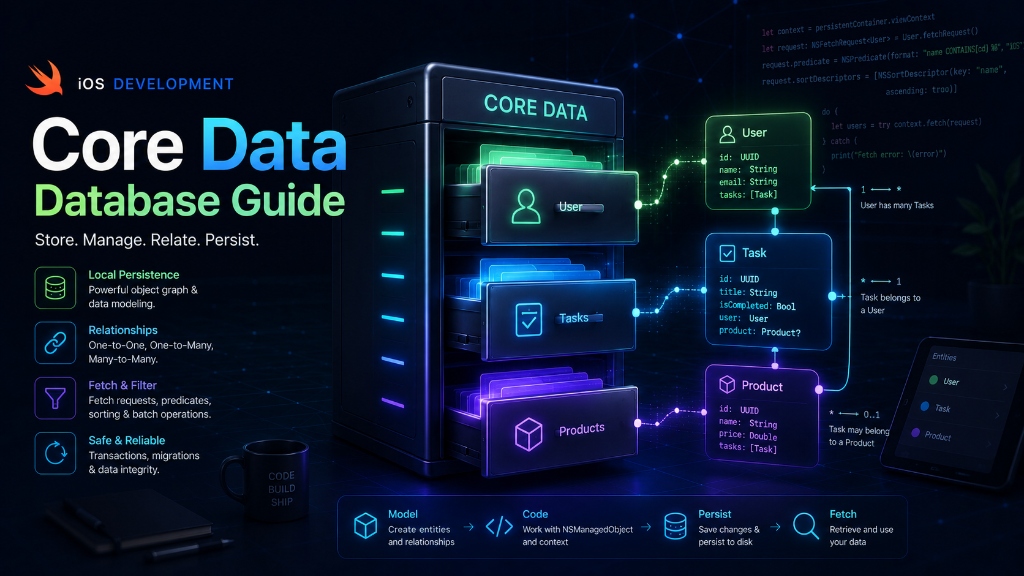
Introduction: In our last blog, we learned how to save simple settings using UserDefaults. But what if you are building a Todo app with hundreds of tasks, or a shopping app with products, categories, and users? For large, complex data that connects together, you need a real database. In iOS, Apple provides a powerful database system called Core Data.
The Analogy: The Giant Warehouse
If UserDefaults is a sticky note on your fridge, Core Data is a giant, organized warehouse. It has:
- The Warehouse Building (Persistent Container): The physical database file on the iPhone's hard drive.
- The Desk Organizer (Managed Object Context): A scratchpad where you edit, add, or delete items. Nothing is permanent until you hit the 'Save' button on this desk.
- Item Blueprints (Entity): The templates or folders that define what an item is (like a 'Task' template with title and status).
- The Items (Managed Objects): The actual cards or entries saved inside the folders.
Core Data vs. Spreadsheet terms
Core Data uses some unique words. Here is how they translate to standard database or Excel spreadsheet terms:
| Core Data Term | Spreadsheet / DB Term | Example |
|---|---|---|
| Entity | Table / Sheet | Task, User, Product |
| Attribute | Column / Header | title (String), isDone (Bool) |
| Managed Object | Row / Entry | A task named 'Buy milk' |
| Context | Staging Area / Drafts | The workspace where you prepare edits |
How Core Data Works in Swift Code
To use Core Data, we first set up a database template in Xcode (called a .xcdatamodeld file) and create an entity called TaskEntity with attributes title (String) and isCompleted (Boolean). Then, we can use the following code to interact with it.
1. Set Up the Container
We initialize Core Data by loading our database container. This is usually done in a helper class or in your App Delegate.
import CoreData

class DatabaseManager {
    static let shared = DatabaseManager()

    // The container represents the database file
    let persistentContainer: NSPersistentContainer

    init() {
        persistentContainer = NSPersistentContainer(name: "TodoModel")
        persistentContainer.loadPersistentStores { description, error in
            if let error = error {
                fatalError("Failed to load database: \(error.localizedDescription)")
            }
        }
    }

    // The context is our staging area/workspace
    var context: NSManagedObjectContext {
        return persistentContainer.viewContext
    }
}
2. Save a New Entry (Writing)
To insert a new task, we create an instance of TaskEntity in our context, fill in the values, and call save().
func saveNewTask(title: String) {
    let context = DatabaseManager.shared.context

    // 1. Create a new task item in our context
    let newTask = TaskEntity(context: context)
    newTask.title = title
    newTask.isCompleted = false

    // 2. Save the context to write to disk permanently
    do {
        try context.save()
        print("Task saved successfully!")
    } catch {
        print("Failed to save task: \(error.localizedDescription)")
    }
}
3. Load Saved Entries (Fetching)
To read tasks, we ask Core Data for a **Fetch Request**. It will search the database and return a list of matching entries.
func fetchAllTasks() -> [TaskEntity] {
    let context = DatabaseManager.shared.context

    // Create a fetch request for TaskEntity
    let request: NSFetchRequest<TaskEntity> = TaskEntity.fetchRequest()

    do {
        // Ask the context to fetch the rows
        let tasks = try context.fetch(request)
        return tasks
    } catch {
        print("Error fetching tasks: \(error.localizedDescription)")
        return []
    }
}Summary
Core Data is Apple's built-in framework for saving large, complex data on the device. It has entities (tables), attributes (columns), and managed objects (rows). By using the Managed Object Context, you can load, modify, and save lists of objects efficiently without writing database queries. It is a must-know tool for building advanced offline apps!