
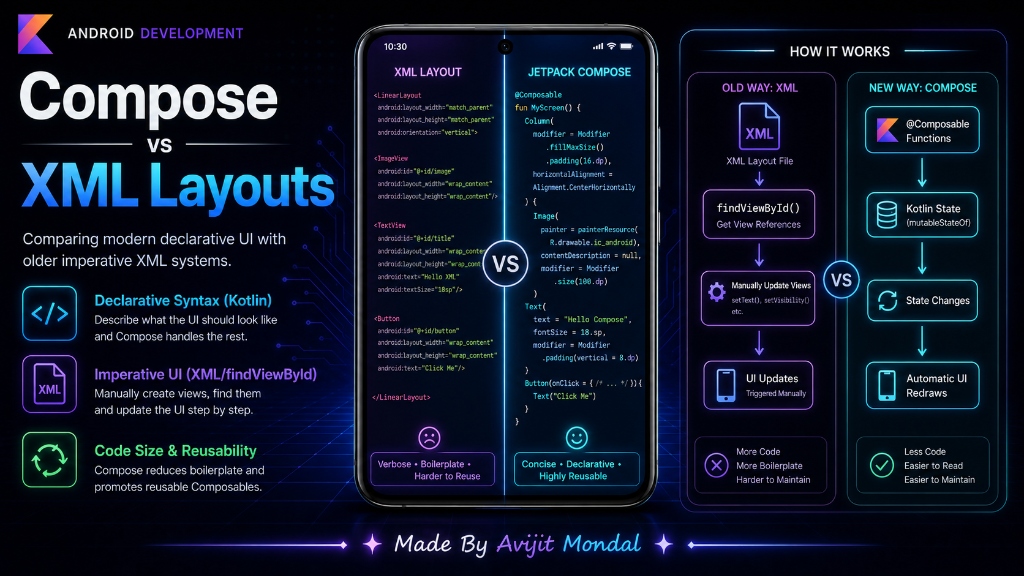
Introduction: When you start building Android apps, you need a way to design the buttons, lists, and screens. For over ten years, Android developers had to design screens using XML layout files. But in recent years, Google introduced a completely new way called Jetpack Compose. Today, we will compare the two systems and explain why Compose is the future.
The Analogy: Puppet Show vs. The Drawing Robot
To understand how these two systems differ, let's look at an analogy:
XML Layouts: The Puppet Show (Imperative)
Using XML is like operating a puppet show. You build your puppet (the screen) in one file (XML) and connect strings to it in another file (Kotlin). When you want to change something, you must find the right puppet and pull the string manually:
- Find the button: 'Hey button, change your text to Loading...'
- Find the loading circle: 'Hey loader, start spinning.'
- If you pull a string in the wrong order or forget one, your screen states get out of sync, leading to buggy screens.
Jetpack Compose: The Drawing Robot (Declarative)
Compose is like having a drawing robot. You do not pull strings on puppets. You just write a recipe describing what the screen should look like based on state (data):
- You say: 'If the app is loading, draw a loading wheel. If it is done, draw a text title.'
- When the status changes, the robot clears the board and redraws the screen instantly. You never have to manually edit screen elements.
Code Comparison: Creating a Text Title
Let's see how much code you need to write to show a simple text label on a screen.
The Old Way: XML Layouts
First, you must create a separate XML layout file (e.g. activity_main.xml):
<TextView
    android:id="@+id/titleTextView"
    android:layout_width="wrap_content"
    android:layout_height="wrap_content"
    android:text="Hello from XML!"
    android:textSize="24sp" />
Then, in your Kotlin code, you must link to it and set the text:
class MainActivity : AppCompatActivity() {
    override fun onCreate(savedInstanceState: Bundle?) {
        super.onCreate(savedInstanceState)
        setContentView(R.layout.activity_main)

        // Find the view by ID and update it
        val titleText = findViewById<TextView>(R.id.titleTextView)
        titleText.text = "Welcome to Android!"
    }
}
The Modern Way: Jetpack Compose
In Compose, there are no XML files. You write your UI elements using Kotlin functions marked with the @Composable annotation.
@Composable
fun TitleScreen() {
    // Draw a Text element instantly in Kotlin!
    Text(
        text = "Welcome to Android!",
        fontSize = 24.sp
    )
}
Jetpack Compose vs. XML Layouts
Here is a quick summary comparing the two technologies:
| Feature | XML Layouts (Old Way) | Jetpack Compose (Modern) |
|---|---|---|
| Language | XML (for UI) + Kotlin (for logic) | 100% Kotlin (UI and logic together) |
| UI Style | Imperative (manipulate view objects) | Declarative (UI matches the state) |
| Code size | Large (needs multiple files and findView) | Up to 50% less code (clean and short) |
| Reusability | Hard to share custom views | Very easy (views are simple functions) |
| Cross-Platform | ❌ Android only | ✅ Yes (via Compose Multiplatform for iOS) |
Summary
XML layouts require writing layout files and manually syncing them with your Kotlin code. Jetpack Compose simplifies this by letting you define your UI in Kotlin based on state. It is clean, requires less code, prevents state synchronization bugs, and runs on multiple platforms. Adopt Jetpack Compose to make building Android screens fun and fast!