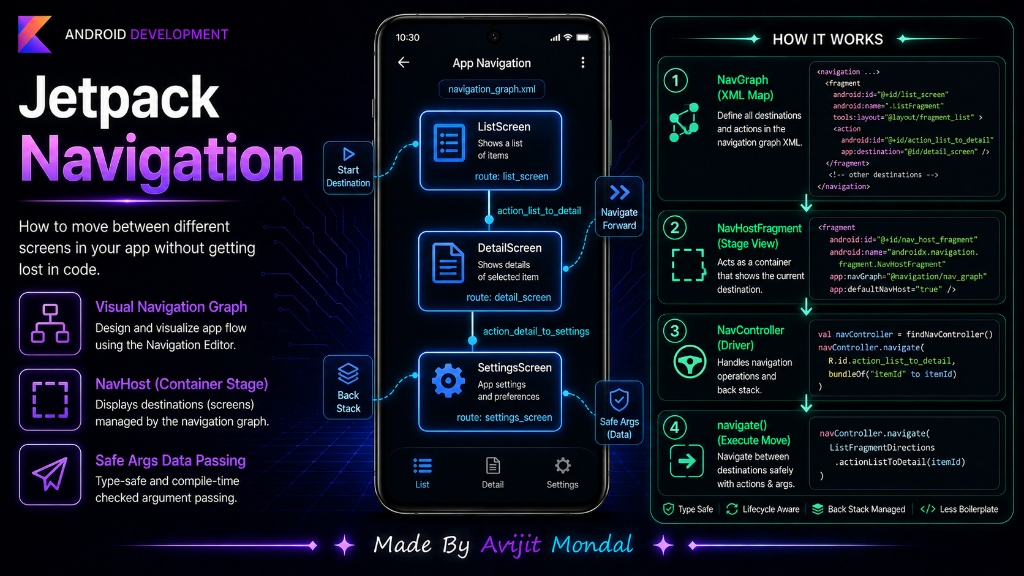
Introduction: When you open a mobile app, you expect to tap buttons to slide between screens, and click the back button to go back. But if you have 20 different screens in your app, writing the code to switch screens can become extremely messy. To solve this, Google created the Jetpack Navigation Component. It lets you manage all screen transitions inside a single, visual map.
The Analogy: The Road Map (Google Maps)
In the old days of Android, moving between screens was like giving driving directions block-by-block in code: 'Hey screen, create an Intent, pack the user's ID, slide from left, and launch screen B.' If you had many screens, your code was full of directions. It was easy to get lost or create loops that crashed the phone.
Jetpack Navigation is like using **Google Maps**. You draw your map (the navigation graph) once. It shows all your cities (screens) and the roads (actions) connecting them.
When you want to go to another screen, you do not write complex transition code. You just tell the navigation driver: 'Go to the Detail Screen.' The system reads the map, handles back presses, and animations automatically!
The 3 Main Parts of Jetpack Navigation
To set up navigation, you need to understand these three core components:
- 1. Navigation Graph (The Map): An XML file that lists all screens (destinations) and visual arrows (actions) representing paths between them.
- 2. NavHost (The Stage Frame): An empty window layout inside your main Activity where different Fragment screens are loaded and swapped.
- 3. NavController (The Driver): The Kotlin object that listens to your commands (like
navigate()) and switches the screens.
How to Navigate in Kotlin Code
Once you draw your map in Xcode/Android Studio's visual editor, triggering navigation takes just one line of code.
1. Navigating to a Screen
To open a new screen (like moving from a List to a Detail screen), you call the controller using the action ID defined on your map:
viewButton.setOnClickListener {
    // Tell the controller to drive to the detail screen
    findNavController().navigate(R.id.action_listFragment_to_detailFragment)
}
2. Navigating Back
You do not need to write custom logic for back buttons. The system handles physical back gestures, but you can also trigger a manual back action in code:
closeButton.setOnClickListener {
    // Go back to the previous screen
    findNavController().navigateUp()
}ListFragmentDirections) so you can pass arguments safely without typos!Navigation Methods compared
Here is a comparison of how you can switch screens in Android:
| Method | Setup Complexity | Back Stack Management | Visual Editing |
|---|---|---|---|
| Classic Intents (Activities) | Low (fast setup) | Managed by Android OS | ❌ No (must write code) |
| Manual Fragment Manager | High (complex transactions) | Manual (requires add/commit code) | ❌ No |
| Jetpack Navigation | Medium (needs graph setup) | ✅ Automatic | ✅ Yes (Visual map editor) |
Summary
Jetpack Navigation Component makes managing screen transitions easy. By defining your screen destinations and paths inside a visual XML Navigation Graph, loading them into a NavHost container, and invoking findNavController().navigate() in Kotlin, you can build smooth transitions, animations, and back-button flows automatically!