
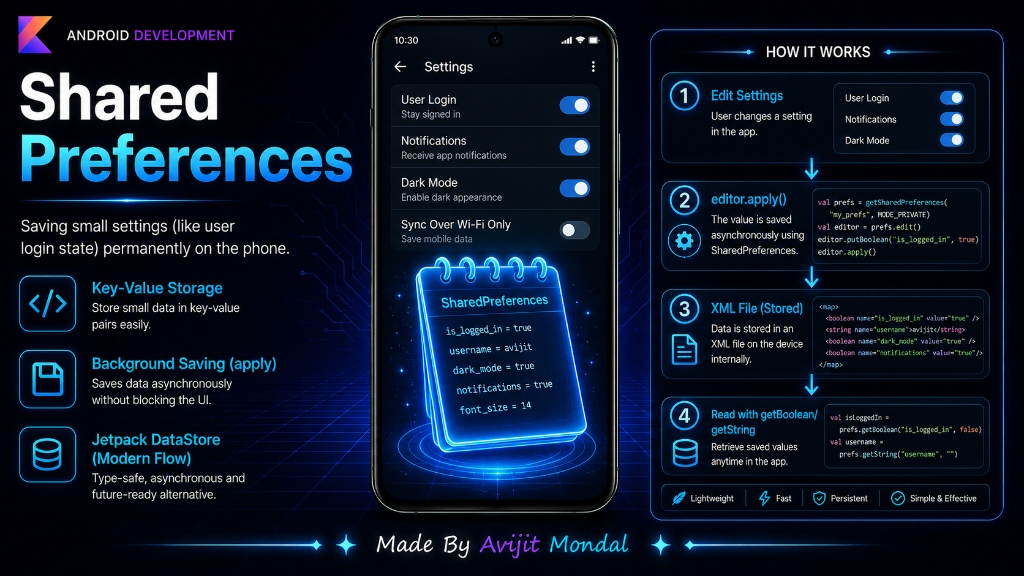
Introduction: When a user logs into your app, checks a box to remember their session, or sets a dark mode theme, your app needs to save this choice permanently. If you open a complete SQL database for just one login flag, it is too heavy. In Android, the simplest way to store small key-value settings is using Shared Preferences.
The Analogy: The Sticky Note Notepad
Imagine your office desk. If you need to store thousands of files, you organize them inside a large metal filing cabinet (which is a database like **Room**). But if you just need to remember one phone number or a short task like 'Mute notifications', you write it on a tiny **sticky note** and stick it on the side of your monitor. It is fast and always visible.
In Android coding, Shared Preferences is that sticky note notepad. It is a simple key-value store. You write a value (like true) under a key name (like "isLoggedIn"). Android saves this notepad as a simple XML text file hidden on the device.
How to Use Shared Preferences in Code
Saving and reading data takes just a few lines of Kotlin. Here is how you do it:
1. Saving Data (Writing)
To write data, you must get access to the Shared Preferences file, open the **Editor**, put the values, and save:
val sharedPref = getSharedPreferences("UserSession", Context.MODE_PRIVATE)
val editor = sharedPref.edit()

// Put data under unique key names
editor.putBoolean("isLoggedIn", true)
editor.putString("username", "Alex_Kotlin")
editor.putInt("userAge", 26)

// Save the changes in the background
editor.apply()
2. Loading Data (Reading)
To read data, you access the same file and fetch the value by its key. You must supply a **default value** in case the key does not exist yet:
val sharedPref = getSharedPreferences("UserSession", Context.MODE_PRIVATE)

// Read data (returns default value if key doesn't exist)
val isLoggedIn = sharedPref.getBoolean("isLoggedIn", false) // Default: false
val username = sharedPref.getString("username", "Guest") // Default: "Guest"
val age = sharedPref.getInt("userAge", 0) // Default: 0

println("Active user: $username (Logged in: $isLoggedIn)")apply() or commit(). Always prefer apply() because it writes data asynchronously in the background. commit() writes synchronously and will freeze your UI screen until the file is written!The 2026 Modern Alternative: Jetpack DataStore
While Shared Preferences is very popular, Google now recommends a newer tool called Jetpack DataStore (Preferences). DataStore is built on top of Kotlin Coroutines and is fully asynchronous, meaning it is safer and never blocks the UI thread. If you are starting a brand new project, look into DataStore, but understanding Shared Preferences is still required because almost every existing codebase uses it!
Local Data Options compared
| Option | Best For | Thread Safety | Complexity |
|---|---|---|---|
| Shared Preferences | Simple flags, toggles, small strings | ⚠️ Poor (blocks UI if using commit) | Very Easy |
| Jetpack DataStore | Toggles, settings, user configuration | ✅ Excellent (uses Coroutines Flow) | Easy |
| Room Database | Large tables, lists, multi-object relationships | ✅ Excellent (requires background thread) | Medium |
Summary
Shared Preferences is Android's classic built-in tool for saving small settings like login state or theme selection. By using a key-value structure, you can save variables in the background using the Editor class and the apply() function, and read them with simple get-methods. Use it to make your app remember user configurations easily!