
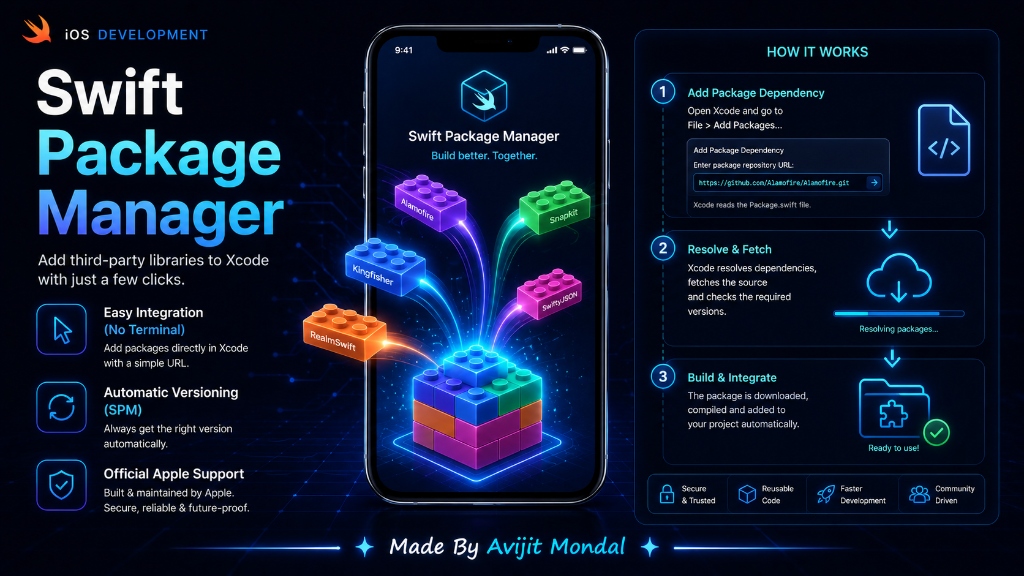
Introduction: When building an iPhone app, you might want a feature that is hard to build from scratch. For example: displaying complex line charts, loading images smoothly, or parsing HTML. Instead of spending weeks coding these yourself, you can use pre-made code written by other developers. In iOS, the easiest way to add this code is using Swift Package Manager (SPM).
The Analogy: LEGO Custom Bricks
Imagine you are building a LEGO castle. If you need a special door or a window, you do not melt plastic in your kitchen to shape a new block. You go to the LEGO store, get a pre-made window piece, and snap it into your castle. It saves time and fits perfectly.
In iOS development, these pre-made pieces are called Packages or Libraries. Swift Package Manager is the built-in LEGO store inside Xcode. It searches for packages, downloads them, and snaps them into your project with just a few clicks.
How to Add a Swift Package (Step-by-Step)
Adding a library in Xcode takes less than a minute. Let's look at the steps:
- Open your project in Xcode.
- In the top menu, go to File > Add Package Dependencies...
- A search box will appear. Paste the GitHub link of the package you want. (For example, to load web images smoothly, paste Kingfisher:
https://github.com/onevcat/Kingfisher). - Select the version options (we recommend 'Up to Next Major Version' so you get updates without breaking code).
- Click Add Package. Xcode will download the files and add them to your sidebar automatically!
How to Use the Package in Code
Once Xcode finishes downloading the package, you can start using it in any file. You just need to import it at the top of your code.
import UIKit
// 1. Import the package we just downloaded
import Kingfisher

class ProfileViewController: UIViewController {
    @IBOutlet weak var avatarImageView: UIImageView!

    override func viewDidLoad() {
        super.viewDidLoad()

        // 2. Use the package functions!
        // Kingfisher lets us load web images with just one line of code
        let imageUrl = URL(string: "https://example.com/avatar.jpg")
        avatarImageView.kf.setImage(with: imageUrl)
    }
}
iOS Library Managers: CocoaPods vs. SPM
To understand why SPM is the modern standard, look at this comparison:
| Feature | CocoaPods (Old Way) | Swift Package Manager (Modern) |
|---|---|---|
| Where is it installed? | Terminal / Command Line | Built-in inside Xcode menus |
| Project modification | Creates a complex .xcworkspace file | Keeps your clean Xcode project file |
| Integration speed | Slower (needs 'pod install' steps) | Very fast (Xcode manages background downloads) |
| Created by | Community project | Apple (Official Support) |
Summary
Swift Package Manager is Apple's official tool for adding libraries to your apps. It is simple, built-in, and fast. By going to File > Add Package Dependencies and pasting a GitHub link, you can install any open-source Swift code instantly. Use it to speed up your development and avoid rebuilding complex UI elements from scratch!