
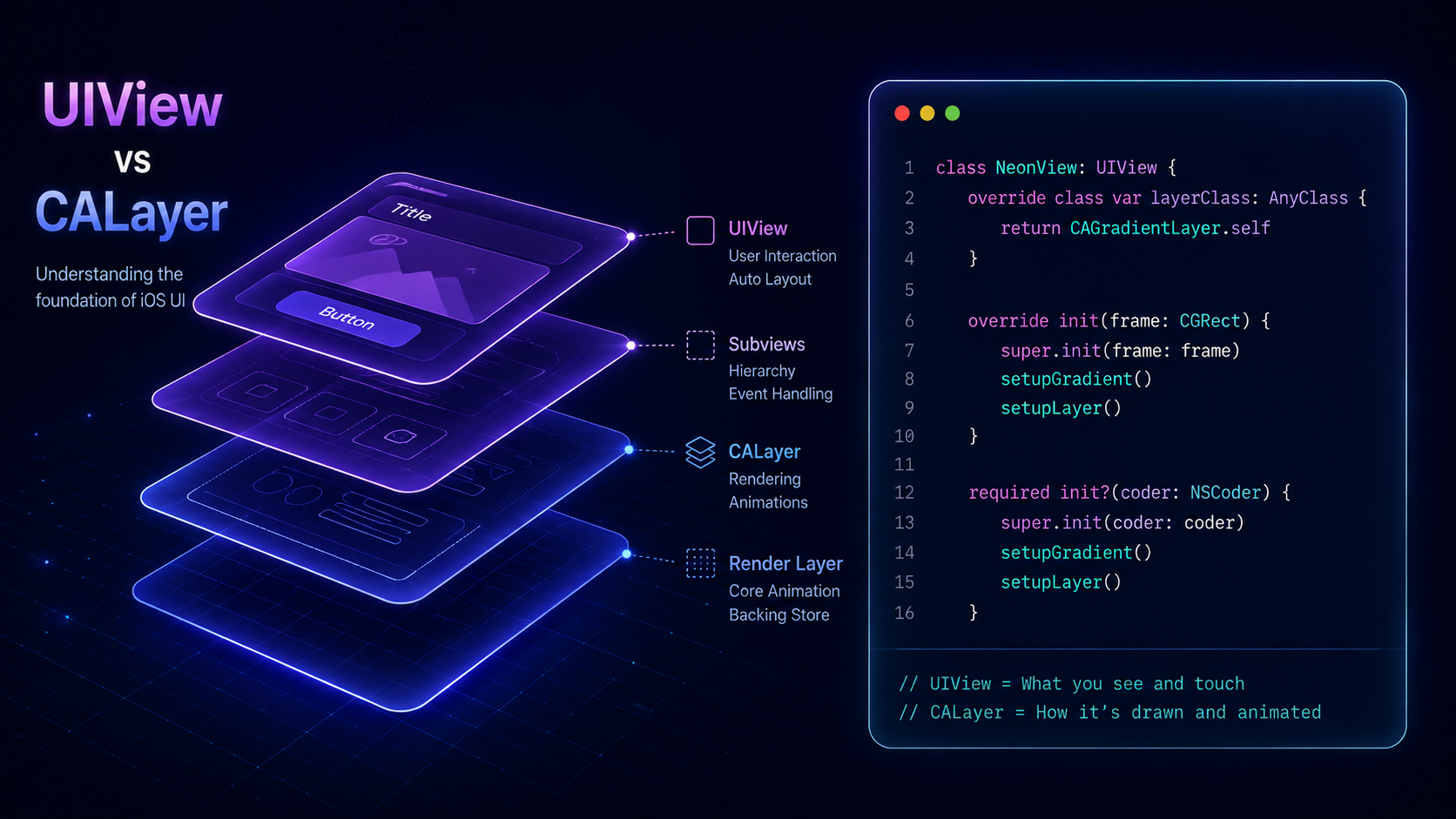
Introduction: In the world of iOS development with Swift, understanding the difference between views and layers is like having a magic key to unlock the secrets of creating stunning user interfaces. In this blog, let's delve into the basics of views and layers, demystify their roles, and see how they work together to make your app look fantastic.
Views: The Superstars of UI
What's a View? A view is like a little actor on your screen. It's what you see and interact with — buttons, text fields, images, and more. Every visible thing in your app is a view.
Example: Let's create a simple button view.
import UIKit

class MyViewController: UIViewController {
    override func viewDidLoad() {
        super.viewDidLoad()

        let myButton = UIButton(type: .system)
        myButton.setTitle("Click me!", for: .normal)
        myButton.frame = CGRect(x: 100, y: 100, width: 200, height: 40)

        view.addSubview(myButton)
    }
}Layers: Behind the Scenes Artists
What's a Layer? If views are the actors, layers are the artists working backstage. Every view has a layer that handles the nitty-gritty details of rendering and animation.
Example: Let's play with the layer of our button.
import UIKit

class MyViewController: UIViewController {
    override func viewDidLoad() {
        super.viewDidLoad()

        let myButton = UIButton(type: .system)
        myButton.setTitle("Click me!", for: .normal)
        myButton.frame = CGRect(x: 100, y: 100, width: 200, height: 40)

        // Access the layer and add some magic
        myButton.layer.cornerRadius = 10
        myButton.layer.borderWidth = 2
        myButton.layer.borderColor = UIColor.blue.cgColor

        view.addSubview(myButton)
    }
}How They Team Up
View and Layer Harmony: When you change something in a view, like setting its background colour or adding text, the layer takes care of updating the actual appearance on the screen. Views are like directors, and layers are the artists turning their vision into reality.
// Changing view properties
myButton.backgroundColor = .yellow

// Layer takes care of rendering the changes
// No need to worry about how it happens
Views for Interaction, Layers for Looks
Best Buddies, Different Jobs: Views handle user interactions, like tapping or dragging. Layers focus on the visual details, making things pretty.
// View responds to tap
myButton.addTarget(self, action: #selector(buttonTapped), for: .touchUpInside)

// Layer makes it visually appealing
myButton.layer.cornerRadius = 10CALayer is more lightweight than UIView. A view can have Auto Layout constraints; a layer cannot. A view can be embedded in Storyboard; a layer cannot. Always use a UIView when you need interaction, and use CALayer directly only for pure visual effects with maximum performance.Quick Comparison
| Feature | UIView | CALayer |
|---|---|---|
| User Interaction | ✅ Yes | ❌ No |
| Auto Layout | ✅ Yes | ❌ No |
| Storyboard Support | ✅ Yes | ❌ No |
| Performance | Good | Better |
| Corner Radius / Shadows | Via .layer | Direct |
| Thread Safe | ❌ Main only | ✅ Yes |
Summary
Views and layers are the dynamic duo making your app shine. Views take care of user interactions, while layers work behind the scenes to make everything look fantastic. When you find the right balance between the two, your app becomes a star on the iOS stage.
In the vast world of iOS development, understanding the roles of views and layers is a fundamental step towards creating visually stunning and interactive user interfaces. Keep exploring, keep experimenting — soon you'll be crafting apps that not only work flawlessly but also look like a work of art.