
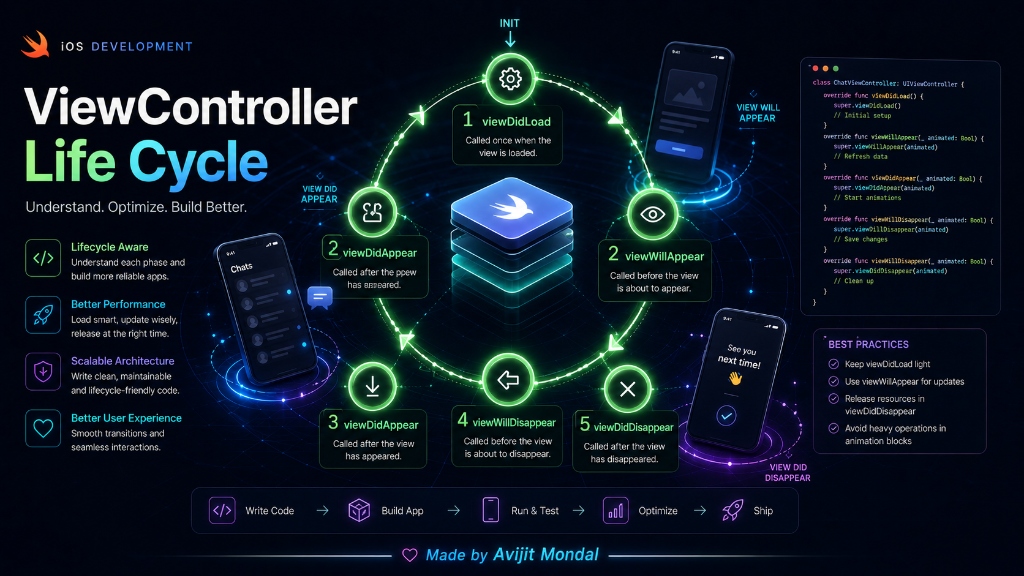
Introduction: When you open a screen in an iOS app, a special object called a View Controller (UIViewController) handles everything. It manages the buttons, loads the text, and controls what happens. But a screen is not static. It is born, it appears, it disappears, and it dies. This journey is called the Life Cycle.
The Analogy: A Theatre Show
To understand the life cycle of a View Controller, imagine you are producing a play at a theatre:
- 1. Building the Stage (
loadView/viewDidLoad): Before anyone arrives, workers put up the walls, paint the backgrounds, and set up chairs. This happens once. - 2. Curtain is rising (
viewWillAppear): The actors are standing in position behind the curtain. The show is about to start, but the audience cannot see them yet. - 3. Show is running (
viewDidAppear): The curtain is open, and the lights are on. The actors perform and interact with the crowd. - 4. Curtain falls (
viewWillDisappear): The show ends, the curtain drops, and actors begin walking backstage. - 5. Clean-up (
viewDidDisappear): The audience leaves. Workers turn off the stage lights and clean up.
Why Does This Matter?
If you write code in the wrong step, your app will have bugs. For example: if you try to start a slow download in viewWillAppear, the screen might stutter. If you forget to stop a video when the screen disappears, the sound will keep playing in the background!
The Life Cycle Methods in Code
Let's look at a complete Swift code for a View Controller, showing where you should put your code:
import UIKit

class DetailViewController: UIViewController {

    // STEP 1: The view is created in memory. Good for initial setup.
    override func viewDidLoad() {
        super.viewDidLoad() // Always call super!
        print("viewDidLoad: Setup views, buttons, and colors here.")
    }

    // STEP 2: The screen is about to appear. Good for hiding/showing bars.
    override func viewWillAppear(_ animated: Bool) {
        super.viewWillAppear(animated)
        print("viewWillAppear: Refresh data or adjust UI before it is shown.")
    }

    // STEP 3: The screen is fully visible. Good for animations and music.
    override func viewDidAppear(_ animated: Bool) {
        super.viewDidAppear(animated)
        print("viewDidAppear: Start animations or show keyboard.")
    }

    // STEP 4: The user tapped back or closed the screen.
    override func viewWillDisappear(_ animated: Bool) {
        super.viewWillDisappear(animated)
        print("viewWillDisappear: Stop music, save settings, hide keyboard.")
    }

    // STEP 5: The screen is completely gone.
    override func viewDidDisappear(_ animated: Bool) {
        super.viewDidDisappear(animated)
        print("viewDidDisappear: Release unused memory or stop timers.")
    }
}super.methodName() (like super.viewDidLoad()). If you forget this, Apple's behind-the-scenes system code won't run, and your app might crash or act weird!Quick Cheat Sheet
Here is a simple summary of what to do in each state:
| Method | How often it runs | What to put there |
|---|---|---|
| viewDidLoad | Once per load | Set up UI elements, load main settings, add layouts. |
| viewWillAppear | Every time screen shows | Reload a database list, update theme colors. |
| viewDidAppear | Every time screen shows | Start a video playing, trigger popup alerts, flash text. |
| viewWillDisappear | Every time screen hides | Save half-typed forms, stop timers, pause video. |
| viewDidDisappear | Every time screen hides | Clean up delegates, remove temporary files. |
Summary
The View Controller life cycle is a loop that manages how screens appear and disappear. By understanding the difference between viewDidLoad (runs once) and the appear/disappear methods (run multiple times), you can control exactly when your app loads data, starts animations, and saves memory. It is the secret to building high-performance iOS apps!